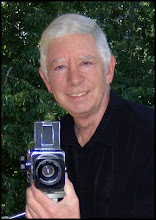
About This Digital iDarkroom Primer

This Primer on the new digital darkroom is provided on this blog to arm new DSLR photographers with the fundamental knowledge needed to become familiar with the evolving digital technologies and be able to apply them to their emerging interest in the photographic art. To read this Primer in logical order, please begin with the oldest post and read to the most current. Click HERE for Table of Contents.

Along the way, you'll find, photography tips, photography techniques and an ample dose of solid photo basics to help you feel comfortable in your digital darkroom.

A sister site, Hub's Camera, covers the fundamental mechanics of using your new DSLR camera. Then visit Hub's Photography Tips for basic but essential tips on all things photographic. Links to both of these sites can be found in the right-hand column of this page. Happy shooting!

"Hub's iDarkroom" is a non-commercial, educational service of Hubbard Camera LLC.
Showing posts with label Adobe Photoshop. Show all posts

Sunday, June 7, 2009

Part 24b - White Balancing in the iDarkroom

In Part 24a - White Balancing in the iDarkroom, the concepts of "neutrality" in color and "known reference" were explained. Pretty exciting stuff. Right? If you have not read Part 24a, take the time now. It will make this discussion much easier to follow and understand.

Using these concepts, it's possible to apply white balancing in the iDarkroom to control precisely the color rendition of any image. Precise color in photographic terms means that colors in the print or on the monitor appear just as they would if seen under standard sunlight conditions.

In terms of "neutrality", when a true gray object is viewed under normal sunlit conditions, the individual Red, Green and Blue values are identical. If they are not the same, then the gray object exhibits a color bias or "tint". The object of white balancing is to adjust the individual RGB color values of the known neutral reference until all three colors have the same numeric values -- a true gray.

When we allow the computer to adjust a "known reference" to its neutral values, our imaging software can automatically apply this same numeric color correction to every pixel in the image. Like magic, the entire image becomes color balanced based on one "known reference".

But there are almost "known references" and then there are real "known references". This would be a good time for some examples and some helpful pictures.

(Blog pictures can appear small. Clicking on any of the following images will produce a larger version to save your eyesight.)

An "almost" known reference


Figure 1 - Camera white balance set to daylight, light source incandescent table lamp

The Figure 1 image was taken with a DSLR set on a white balance of "daylight". However, the light source was a table lamp using a standard incandescent light bulb. The result is a picture containing far too much yellow. We'll correct the color rendition in post processing using both Photoshop and Lightroom 2. But to make the needed correction, a "known reference" point is required. A point in this picture where we know the color should be a true neutral (where the red, green and blue values are equal).

We learned in Part 24a that all true shades of gray from pitch black to pure white have red, green and blue values that are equal. Our first task is to find a neutral color in this picture. This is tough, but there is one small area that appears to be a very bright white.


Figure 2 -- "Almost" known reference shown in yellow circle

The small area of the decorative ball shown in the yellow circle of Figure 2 appears to be made of white thread. That's a good thing. Photoshop can use this as a reference point. And here's how.


Figure 3 -- Using Photoshop's "Levels" command to adjust white balance.

Figure 3 shows our picture in Photoshop with the "Levels" command window open. Below the "Options" button are 3 eyedropper icons. These are the tools for color balancing. The three droppers from left to right are black, gray and white. The dropper selected is determined by the area chosen as the known reference. In this case, I selected the white eye dropper (inside the green circle) because I will be applying the color correction adjustment to a known white reference point in the picture.

I click on the white eye dropper to select it. Then I click on my known white reference (the white thread inside the red circle in Figure 3). Zap. It's done. Not only was my white reference point corrected to a neutral white, but every other pixel that makes up this image was automatically adjusted with the same color correction. Compare the color in Figures 2 and 3. Lightroom has a similar "eye dropper" white balance tool.

So that's it? If only it were that simple.

Remember, I said this is an "almost" known reference example. It works, and I use it frequently. It's a "good enough" solution for most situations. But, it is not an exact white balance color correction.

The reason is because the thread in this picture -- like every other color that we perceive as neutral -- isn't exactly neutral. If we could analyze the color of the thread that was used as our white balance reference point, it would not be a true neutral white. It would have some color bias (or tint). So, when I corrected the thread to a true neutral white with the "eye dropper" tool, I forced it to become a white that wasn't true to the real world color of the thread. For many, this is good enough.

A "Real" known reference

When color rendition is critical, there is a simple solution. A solution that has been used by photographers for decades. PLACE A KNOWN REFERENCE IN THE PICTURE.


Figure 4 - Kodak Color Control Patches Chart

All we need is something we can place in the frame of the picture that we know is absolutely accurate in color. Figure 4 shows one of these standards. This Kodak Color Control Patch chart contains colors of known color values. The black, gray and white on this chart are totally neutral. They are our "known references". If we could "eye dropper" one of these colors in Photoshop or Lightroom, then correct white balance would be assured.


Figure 5 - Original picture with Kodak reference chart included

Figure 5 shows the original picture again. Only this time the Kodak chart has been added to the scene. (I know. Having the chart in the picture isn't something most people would want to frame and hang in their living rooms. I'll take care of that issue later.) But the picture now contains a white that we know is truly white in reality.

Note: The Kodak chart shown here is only one type of reference that can be bought at your local camera shop. Many photographers use a commercially produced gray card. This 8 inch by 10 inch card is a single solid 18% gray in color on one side and pure white on the other side. For white balancing, either type of card works well. Remember to use the appropriate "eye dropper" tool when white balancing in Photoshop.

However, one complicating factor to our white balancing process by using this reference card is that WE DON'T WANT THE CARD TO APPEAR IN OUR FINAL PICTURE. So, when taking the picture in Figure 5, take a second picture with the reference card REMOVED. The plan is to correct the picture with the reference card to a perfect white balance, and THEN apply the same correction to our second picture with the card removed. But, how is this done?


Figure 6 - Create a "Levels" adjustment layer

Once the picture with the reference card is opened in Photoshop, create a new "levels" adjustment layer as shown in Figure 6.


Figure 7 - Making the white balance correction using a "levels" adjustment layer

Figure 7 shows how this white balance correction is made.
  • from the "layers" window (green box) select the new adjustment layer (yellow box);
  • from the "adjustments" window (blue box), select the white "eye dropper" (magenta box);
  • click the "eye dropper" on the white patch of the Kodak reference chart in the picture (red circle).
The entire picture changes in color to reflect the correction needed to make the white Kodak patch a true white. Now we have a picture of the decorative balls with a Kodak reference chart that is color accurate and suitable for framing.


Figure 8 - Applying white balance correction to the final picture

Figure 8 shows how the corrections we just made can be applied to the picture with the Kodak chart removed. After all, this second picture should require exactly the same correction.
  • Start by opening both pictures in Photoshop and place them side-by-side.
  • Make the active window the corrected picture containing the Kodak chart (the green box shows that this is the active window).
  • The layers window (I placed it between the two pictures for this example.) shows two layers. One called "background", and one labeled "levels 1". Click and hold on the "levels 1" layer.
  • Drag the "level 1" layers (shown as the red box above) to the second picture (without the Kodak chart) and release the mouse button.
  • Photoshop will automatically make a copy of the adjustment layer from the first picture and create an exact adjustment layer in the second picture. And the color will change to match our first, white balance corrected picture.

Figure 9 -- Final "real" known reference" white balanced image


Compare the final picture in Figure 3 using the "almost" known reference to the final "real" known reference picture in Figure 9 above.

Lightroom uses a similar "eye dropper" technique, but requires fewer steps.


Figure 10 -- Lightroom 2 White Balance Tool

White balancing is done in the Develop module of Lightroom 2.
  • click once on Lightroom's white balance "eye dropper" tool (red circle in Figure 10);
  • find the known neutral reference point in the picture and click once (shown in the green circle of Figure 10).
Then all colors within the picture will change based on the correction required to make the reference point neutral. Figure 11, below, shows the results of this white balance procedure.


Figure 11 - Original image after applying the white balance tool

Applying this correction to the picture without the reference chart is even easier. As a matter of fact, this correction can be applied to multiple pictures at the same time in one quick step.


Figure 12 - Applying one correction to multiple images in Lightroom

In the Library mode, shown above in Figure 12:
  • click-select the picture that has the correction you want to apply to other pictures in the collection (shown in the green box);
  • while holding down the Alt key on PCs or the Command key on Macs, click-select all the images to which you want to apply the same white balance correction as the original;
  • click on the "Synch Settings" button (shown in red circle in Figure 12).

The window below will appear:


Figure 13 - Lightroom "Synchronize Settings" window

The window that appears (Figure 13) allows the synchronization of dozens of image attributes. But only the white balance correction will be selected for this example. Only the White Balance box (shown in green) should contain a check mark -- all others blank. Then click on the Synchronize button in the lower right-hand corner.


Figure 14 - White Balance of master image is applied to all selected images.

Figure 14 shows the results of synchronizing the white balance of the four images. Lightroom's Synchronize feature allows for rapid duplication of any of the program's editing features to other pictures in the collection.

Note: Applying a white balance correction to multiple images ONLY works when all the pictures were taken under the SAME light source.

Considering the wealth of white balance controls available on modern DSLRs when the picture is being taken and the additional controls available in image editing software during post processing, there is little excuse remaining for poor color accuracy. Take advantage of all these controls to provide the color accuracy and creativity your vision of the final picture requires.

Tuesday, December 16, 2008

Part 20 - Cropping Digital Images

Without a doubt, the first and most frequently used function in any digital imaging program is the Cropping Tool. Cropping has been basic to photography since its beginning.

Cropping determines the dimensions and boundaries of the final image. In addition, cropping ultimately determines the artistic and aesthetic placement of the central focus of any image.

Cropping occurs twice during the creation of a photograph:
  • The first crop is performed in the camera as the photographer composes the picture in the viewfinder. The photographer decides at this time the limits of the scene that will be contained within the 4 borders of the picture as well as the elements (objects) that will be captured.
  • The second crop takes place in the iDarkroom. Digital imaging programs contain cropping tools that allow the photographer to perform a final technical and artistic adjustment to define the dimensions and element contents of the final image.
A fundamental rule in photography is to crop in the camera. Photographers have long been advised to compose the image in the viewfinder as it is to appear in the final print. There are sound reasons for making this recommendation.
  • Aesthetically, cropping the image in the camera forces the serious photographer to focus on the rules of good composition and to mentally visualize the final image.
  • Technically, cropping in the camera produces a digital file that requires less cropping in the iDarkroom which interprets to sharper final prints. Excessive digital cropping and/or enlarging reduces the resolution and, consequently, the quality of the final photograph.
In the real world, photographers walk a fine line when they consider cropping. Yes, professional photographers will "pre-visualize" the final image and crop accordingly as they compose the picture in the field or studio. However, to provide some margin of error, most professional photographers will leave a small excess of the original scene on each of the four sides of the viewfinder image. The final cropping almost always takes place in the iDarkroom.

Because of the importance of cropping to photography, virtually every digital imaging program offers tools to perform this function. I will use cropping examples with Adobe's Lightroom and Photoshop. Most imaging programs will offer a tool with similar functionality.


Original picture as shot without iDarkroom cropping.

This is my sample picture for walking through Lightroom and Photoshop's cropping functions. To match the pre-visualized image of this outstanding photographer (me), some cropping refinement is required.


The area to be eliminated (or "cropped out") is shown in light brown.

Shown above is the same image with the areas to be eliminated shaded in brown. Notice: I am not concerned about the size of the final image at this stage. I am only concerned with the contents of the image appearing within the borders of the final print.


Cropping Screen with the Lightroom's Develop Module

Lightroom's cropping tool (red box above) is available from the program's Develop Module. Clicking on this tool reveals the window shown above. A free-hand cropping icon (shown in green) is available for a click-and-drag cropping. Or, handles that appear on each corner and the center of each side can be clicked-and-dragged to a new location. (Normally, I use the six handles to define the cropped area.)

An additional convenience provided in Lightroom is the inclusion of "rule of thirds" indicators. Faint grid lines that divide the picture into thirds horizontally and vertically are overlaid on the picture. The four intersections of these grid lines (shown in blue) are the "rule of thirds" points for subject placement. The locations of these points change dynamically as the crop (border lines) is moved -- nice touch for beginning and advanced photographers alike.


Lightroom's Develop Module with Crop Indicated

Here is a closer view of the Lightroom screen with the crop lines positioned. The image areas in dark gray will be eliminated (cropped) from the final digital picture. By pushing the "enter" key, the crop will be performed, and the final image appears.

Remember from our previous discussion about the non-destructive editing features of programs like Lightroom and Apple's Aperture, the original digital file is NOT being altered. The information about the crop just performed will be included along with any other corrections in a separate file and applied to this image whenever it is displayed on the monitor. The original uncropped and unaltered file is ALWAYS retrievable.

Let's compare this cropping technique to that used by Photoshop and many similar programs.


Photoshop's Crop Tool (in red)

In Photoshop, the cropping tool is always present on the left-hand tool bar as shown in the red circle above. This icon has become almost universal and looks similar in other editing programs. Clicking on this tool activates the cropping function.


The Photoshop crop is indicated and ready for execution

In the picture above, the crop tool (a click-and-drag functioning tool) has been positioned as indicated by the "marching ants" marque. After releasing the mouse button, the area to be "cropped out" will be shown in dark gray (above). Notice, much like Lightroom, that six positioning handles also appear when the mouse button is released (red circles above). Using these handles allows for final precision positioning of the borders of the crop. Hitting the "return" or "enter" key completes the cropping function.


Final cropped picture

Remember, Photoshop and similar editing programs work on a destructive editing process. In other words, the original file HAS been altered. So, perform a "SAVE AS" command and use a new file name NOW. This will ensure that the original file will NOT be overwritten and destroyed.

Simultaneous Cropping and Sizing

It is possible to perform cropping and image re-sizing at the same time with the cropping tool. Having this capability allows the photographer to specify the desired specific print size and print resolution while performing the cropping.


Original picture before cropping and re-sizing

This picture requires cropping to correctly position the subject. In addition, I know that a final print with the dimensions of 10" x 8" at 240 ppi is required. With Photoshop's cropping tool, I can perform both operations at once.


Photoshop's cropping and resizing functions

With the cropping tool selected (red circle above), I can type in specific dimensional attributes in the width, height and resolution boxes (shown within the green circles above). In this case, a width of 10", a height of 8" and a resolution of 240 ppi are typed into the boxes.

Caution: When you don't want to automatically re-size an image to specific dimensions or PPI resolution, these boxes must be blank. Using the "Clear" button (yellow circle above), will erase any specified sizing in the width, length and resolution boxes.


Areas to crop are shown in dark gray and the constrained 8"x10" print area is visible.

Now, as the click-and-drag is performed with the mouse, the crop is constrained to the proportions of 8"x10". Any crop can be accommodated when you perform this operation, as long as it conforms to the proportion of 8 by 10. The crop and re-sizing is completed by hitting the "return" or "enter" key.


Final cropped and re-sized image

Check the properties of this image and you will discover that the new cropped image is 8 inches by 10 inches with a resolution of 240 ppi. Remember to save this file under a new file name to prevent overwriting the original file. Most modern image editing programs incorporate this time-saving feature in their cropping tools.

You will find that the cropping tool is one of your best friends and most utilized tools. Because of the frequency of use, cropping will soon become second nature.

Tuesday, November 11, 2008

Part 18 - Resizing Digital Images

Like an enlarger in a traditional darkroom, images can be re-sized in the digital iDarkroom to suit the requirements of the job. The computer replaces the enlarger, and a new set of tools as well as technical jargon are used to make these necessary image conversions. This article will provide the basic information required to re-size pictures to their required dimensions and resolution.

Adobe's Photoshop will be used as the editing tool, but the lessons learned here are applicable to nearly all image editing software. As you become more proficient with your own image editing software, you'll discover that there are several ways of re-sizing an image. But the most basic and most common method will be explained in this primer.


Photoshop workspace with original image, "Histogram" and "Image Size" window

The illustration above is a portion of Photoshop's workspace and shows the picture to be used in this article, the Histogram and the "Image Size" window. The picture is taken directly from the camera with no editing applied. For my purpose, this picture requires some cropping, image enhancement and resizing. It's these steps that will be walked through and discussed.

Accessing the Image Size tool in Photoshop is straightforward.


Accessing the Image Size Tool in Photoshop

To activate the Image Size tool in Photoshop, use the "Image" drop-down menu in the main bar and select "Image Size..." (shown above).


Close up of the "Image Size" window

Here's the Image Size window in a size that's actually legible. Most of the explanations and procedures in this re-sizing article require the use of this Image Size tool. The information initially presented in the Image Size window provides the current technical "size" details of the image as well as entry boxes for altering any dimensions.

The Pixel Dimensions section (red box) shows the size of the image in terms of pixels. In this case, the dimensions are of an image that came directly from the camera -- 3872 pixels wide by 2592 pixels high. The Document Size section (green box) indicates exactly how large the image would be if printed right now. In this case the measurement scale is set in inches. So a print from this image would measure 16.133 inches by 10.8 inches with a resolution of 240 pixels per inch. (Document Size is the measurement for the entire printable area -- not necessarily the size of the picture on the document. More on printable area in just a moment.)

My first editing task is to crop the image to include only the portion of the picture needed for the final print.


Cropping Tool in Photoshop can be seen as the marque lines in this screen picture

Use of the cropping function will be explained in later articles, but for this example notice the cropping marque lines (the marching ants as Adobe would say) that define where my cropping will occur. (I'm taking a little image area off each end of the picture.) With the crop area visually defined, hit ENTER. The crop is completed and appears on my monitor.


The new Image Size information after the crop was performed.

Remember the original size of this image was 16.133 inches by 10.8 inches. The new cropped size (seen above) is 14.917 inches by 10.8 inches. This new dimension reflects the fact that I cropped (approximately) one inch off the ends of the original picture. The crop function has also caused the overall file size to become smaller. The number next to the words "Pixel Dimensions" indicates the current file size. This cropped image reduced the file size from 57.4 megabytes to 53.1. What happened to the other 4.3 megabytes of image information? It was trashed.

Next I SAVE the image under a new name to avoid corrupting my original image file.

Then with a little Photoshop magic I apply the color, density, saturation, etc. adjustments needed to create a masterpiece. (These steps are not covered in this article.) When done making corrections, I again SAVE the file.


Cropped image with corrections applied as seen in Photoshop

That was easy. Now I need to re-size the image for its intended use. Some of the possible uses include:
  1. Producing a print from my printer
  2. Producing an image file for reproduction in a printed publication
  3. Producing an image file that can be used in a digital slide show or on the Internet.
Each of these possible uses has unique image size parameters. It's these parameters that determine the specifications entered into the Image Size window.

1. Resizing the photo for printing on your home printer

You'll see much debate on photo blogs and forums about the resolution (pixels per inch or PPI) required to make a good print in your iDarkoom. The recommendations range from 200 to 300 PPI. I know from my career at a major photo printer manufacturer that my printer works best at 240 PPI. Using a pixel per inch setting higher than 300 has little or no impact on the quality of the final print. So, when I set up an image for printing at home, 240 PPI is my target resolution.

All I need to know now is what size I want to make the print. For example's sake, let's size the existing 14.917 inches by 10.8 inches x 240 PPI to fit on a standard 8"x10" piece of photo paper with at least a 1/2 inch border for framing purposes.


Image sizing for an 8"x10" print

First, the Golden Rule for re-sizing operations: Reducing the physical dimensions or the resolution (PPI) of an image is OK. Enlarging any of these parameters will introduce some degree of quality and visual imperfections. More to come.

In the picture above, I have entered a new value for the width of this image -- 9 inches. The height of the image AUTOMATICALLY changed to the correct proportional value -- 6.516 inches. Why did the height change when I entered 9 inches for the width? Because I checked the box labeled "Constrain Proportions". This instruction tells Photoshop to keep all sides in proportion to the original image. This relationship is shown in the green box above by the lines and padlock icon. Change one height/width dimension, and the remaining dimension changes automatically to constrain the proportions.

Since I want the image to print at a resolution of 240 PPI, I do NOT want the original resolution of 240 PPI to change. I ensure this PPI is retained by CHECKING the RESAMPLE box shown in red. If I had not CHECKED this box the resolution would also have changed in proportion to the new 9" width dimension I entered. (With RESAMPLING off and since I technically made the picture smaller than the original, the PPI number would have automatically increased to reflect the smaller image size.)

If you're asking why the height dimension shown in the Document Size area is 6.516 and not 7 inches to give me a 9"x7" print on the 8"x10" piece of paper, then please read my article entitled "Proportions in Photography" on my Hub's Photography Tips blog site.

Clicking on OK completes this re-sizing operation. Then SAVE the image, and you're ready to print.

It's time to explain "printable area" and its relationship to Document Size. In the above example, the Document Size is the "printable area". Consequently, the pixel dimensions of the image and the Document Size are exactly the same. Document Size does NOT refer to the paper being used in the printer. It only refers to the size of the complete image that will be sent to the printer.

An example should help. Many photographers make the artistic decision to print their picture on paper larger than the image they are preparing. This layout can be accomplished in Photoshop by enlarging the entire "canvas" that the picture occupies.


Canvas Size Window in Photoshop

A function called Canvas Size under the Image pull-down menu activates the window shown above. Size values can be entered in the height and width boxes to increase the size of the canvas. It's important to remember that Canvas Size function doesn't enlarge the image. Instead it adds new canvas space AROUND the existing image.

Using the example picture, I want to print the original cropped file (14.917 inches by 10.8 inches) onto a 13"x19" piece of fine art paper. I also want to control exactly where on this large piece of paper my image will appear. To make this happen I:
  • enter the new canvas width and height information into the boxes (green oval),
  • instruct the computer to place my image in the center of this new canvas by clicking on the CENTER box in the Anchor selection section (blue oval), and
  • select "white" as the color of my canvas using the canvas extension color menu
Notice that the size of this file has now increased to 81.4 megabytes -- due to adding the extra white canvas area to the file.


New 13"x19" Canvas

Now the monitor displays the original picture placed on a 13"x19 white canvas. The picture-only portion of the canvas was then moved upward on the canvas by one inch to give it the proper visual positioning for mounting.

One more time, open the Image Size window and the impact of changing the canvas size is apparent in the Document Size section.


Image Size information after the canvas was enlarged

The new Document Size is 13"x19" even though we know that the image on the canvas is 14.917 inches by 10.8 inches. The entire 13"x19" canvas is the printable area and is reflected in the Document Size. In addition the Image Size window reports that the file size is now 81.4 megabytes. So, (in the Image Size window) Document Size equals the actual image size only when the Canvas Size equals the actual image size.

2. Producing an image file for reproduction in a printed publication

OK, National Geographic Magazine has called and wants to use this picture in an upcoming issue. Happens every day. Right.

The magazine's specifications require an image with a PPI of 300. I SAVED my initial cropped and corrected image file, and it is currently sized at 14.917 inches by 10.8 inches x 240 PPI.

All I need to do is re-size the image to National Geographic's specifications.


Resizing for magazine publication

Opening the "Image Size..." window, I can change the single variable -- Resolution -- in the Document Size/Resolution box (shown in green) to 300. This time, however, I UNCHECKED the RESAMPLE box (see above). Consequently all three dimensional attributes are LOCKED together and the width and height of the image AUTOMATICALLY change to remain in proportion to new 300 PPI entry. (11.933 inches by 8.64 inches) Clicking OK will complete the change. Then SAVE the altered file under a new name. (Impress others by including the words National Geographic in the new file name.)

When the photo editor at National Geographic receives this file, it will be given final sizing as it is placed in their digital publishing program. All that's left to do is cash the check.

3. Producing an image file that can be used in a digital slide show or on the Internet

All of the images I use for Hub's photo blogs must be resized to accommodate the specifications of my visitors' monitors. This means that I must place images into my blogs that have a PPI of 72. I also limit the height and width dimensions of these images to a maximum value of 6 inches for either side. So now I have my parameters, let's convert the same picture for use on this blog site.


Resizing for Internet or Monitor Slide Shows

The original images I produce for these blogs are always larger than the image that is ultimately placed on the blog page. To reduce the size of my images, I use the "Image Size..." tool as shown above. This example picture is horizontal (wider than it is tall). I enter "6" in the width box. Because the "Constrain Proportions" box is CHECKED, the Height dimension automatically changes to 4.344 inches. I've also CHECKED the RESAMPLE IMAGE box to allow me to enter a new PPI of 72 in the RESOLUTION box (inside the green oval).

Clicking OK completes the action and results in an image with the dimensions of 6 inches by 4.344 inches by 72 PPI. I SAVE this file under a new name, and it's ready to upload to my blog page.

Note: The Resizing Golden Rule states that enlarging a picture beyond its original dimensions and PPI constraints is to be avoided. As has been stated in earlier articles on this blog, making this type of enlargement involves interpolating the image. To make this happen Photoshop and all image editing programs must "make up" digital data. In other words, in order to provide enough pixels to comply with your enlargement request, the software must "guess" what the missing pixels would have been. Photoshop is pretty good at guessing, but it's still just a guess.

So if you must enlarge a picture larger than its technical specification, do it sparingly and keep the enlargement as small as possible. In practical terms, if the file out of your camera is capable of making a horizontal print that's say 12"x9" without any interpolation at 240 PPI, can you enlarge the picture to 14" wide with the same 240 PPI without noticeable quality loss? The anwer is YES. Can you make a print that's 24" wide? The answer is again YES. But at this more extreme enlargement size, you will see a quality difference. In fact, you can make this picture ANY size you want, but the more it's enlarged the more noticeable the imperfections caused by interpolation will become.

As I mentioned at the beginning of this article, there are several ways to re-size pictures using today's image editing programs. The method explained here will be used for the majority of your work and is common to most imaging software.

If you have questions or comments regarding this primer on re-sizing digital image files, please let me know.

Monday, November 3, 2008

Part 16 - Photoshop, Lightroom or Aperture

The last two posts covered the topic of organizing digital image files. The capabilities and search flexibility of programs like Adobe's Lightroom and Apple's Aperture have brought a new level of image organization and retrieval to the individual photographer that was previously the exclusive territory of sophisticated corporate image storage systems.

What's currently muddying the waters are the enhanced editing features that these organizing programs are bringing to the market. The question now being asked is: "Do I need a dedicated photo editing program, like Photoshop, or are the editing features now included in Lightroom and Aperture enough for my needs?"

This post will lay the basic groundwork towards making that distinction apparent, and ultimately help in making your "buy - no buy" decision. The best place to start is to understand the editing features these new programs offer. I will use Adobe's Lightroom for my examples, but similar features and tools can be found in Apple's Aperture. (These editing tools will be briefly described in this post. How and when to use each of these editing tools will not be covered in this primer.)


Main Lightroom Workspace

Shown above is Lightroom's primary workspace. The various modes of Lightroom are located at the top of the screen as Library, Develop, Slideshow, Print and Web. The previous two discussions took place in Library Mode (yellow box). This mode contains the organizational features of this program including keywording, metadata, image ranking, film strip, preview area and the image search function.

But even in this Library Mode some limited image status and editing operations are available. So, as an image is selected (click on image in central preview area or on an image in the film strip at bottom), an image histogram is displayed (shown in yellow) and several coarse editing functions become active (shown in green box). The histogram in Lightroom displays the levels for all the primary colors (red, green and blue) as well as the secondary colors (cyan, magenta and yellow) for a more detailed look at the digital make up of the selected image.


Quick Develop Function in Library Mode

Here are the controls available for coarse image corrections in Library Mode. These controls are not nearly as elaborate as their sister function in the Develop Mode, but they do provide a quick way of making initial adjustments to individual or groups of selected images. For example, if a particular group of your images have a slight green cast, all of the images can be selected at once and their white balances adjusted to add more magenta (magenta is the opposite of green) and reduce the green cast. In the same way, a group of images that are too dark can be lightened as a group using the coarse exposure control.

To make more critical corrections, Lightroom users select the Develop Mode in the top bar of the main workspace.


Lightroom's Develop Mode Workspace

Although the above picture is small, it does help orientate you to the Develop Mode workspace in Adobe's Lightroom. Here a picture was selected in the Library Mode to be adjusted. "Develop" (see green box) was selected from the top bar to reveal this image editing workspace.


Lightroom's Histogram and Treatment Tools in Develop Mode

That's better. In this close up view of the right-hand side of the Develop Mode workspace, the first of Lightroom's editing tools can be seen. Again a histogram is always visible and will reflect -- in real time -- any changes you make during image editing. Among the tools available are:
  • White balance control (color temperature and tint)
  • Recovery, fill light and blacks
  • Brightness and contrast
  • Presence (controlling overall clarity, vibrancy and saturation).
All of these tools are represented as sliders to allow precise control of the adjustment. Any adjustment made using these tools is immediately reflected in the large preview image in the center of the screen.


Tone Curve, Hue, Saturation, Luminance, Color and Grayscale control panels

The editing tool bar on the right of the screen has its own vertical slider to provide access to more editing options. Here the Tone Curve is shown as well as the slider controls for Hue, Saturation, Luminance, Color and Grayscale. Again each slider control allows for very precise control and any adjustments are previewed immediately on the large center-screen image. A helpful feature is available on several controls that makes visual adjustment much easier. In the above example, Saturation is shown to be active. Notice the small circle to the left-hand side of the word Saturation. Clicking on this button converts your pointer/cursor to an on-screen saturation tool.


Cursor Saturation Tool Example

Here's the cursor saturation tool (within the green circle) as it appears on the large preview image. I can now be very specific about the color that I'm adjusting. In this case, the cursor is located on top of a yellow portion of the sunset. With a combination of click/hold, I can drag the cursor up or down to increase or decrease the saturation of the yellow in the entire picture. While performing this operation, the sliders in the Saturation portion of the tool bar will move to reflect precisely the change being made. Pretty cool. This feature is available with several of Lightroom's image editing tools.


Detail and Lens Correction Options

The final two editing controls in the right hand options bar are "Detail" (for precisely controlling image sharpness) and "Lens Correction" (to adjust for or simulate imperfections common to lenses). The sharpening functions of Lightroom are very precise and flexible. See the Sharpening post in Part 13 of this iDarkroom primer for more information.


Cropping, Red Eye and Straightening Controls

Immediately below the large central preview image are the controls for setting the preview image (i.e. full screen, side-by-side before and after view, etc.). In addition, a Red Eye function is available as well as all cropping and straightening functions. Cropping and straightening are very intuitive within Lightroom and performed in real time with guidelines on the large preview image.


Lightroom's Pallet of Preset Effects

The final feature to be mentioned in this primer are Presets. Adobe has included a selection of predefined effects that can be applied to any image (shown above). The presets in Develop Mode are listed on the left-hand menu next to the large central preview image. As the user passes the cursor over each optional preset a small preview image is displayed (red box above) to provide visual feedback on the effect each preset will have on the selected image. In the example above, the preset labeled "General - Grayscale" is selected and all of the Lightroom corrections required to convert the selected image to a grayscale (B&W) image are applied. The result is immediately shown in the center-screen image.

Lightroom as well as Apple's Aperture - not covered here - also have significant additional features that make them a nearly universal imaging product:
  • Slideshow production including music and multiple export options
  • Web gallery production including a broad selection of gallery styles
  • Extensive Printing Options offering unique printing formats for numerous purposes including contact sheets and fine art layouts.
The distinctive feature unique to Lightroom and Aperture is contained in how all the corrections made during editing are applied to your original digital file.

They aren't!

In photo-speak, all of the actions (regardless of how dramatic or extensive) that you make during image editing are NOT applied directly to the original image. This is called non-destructive editing. Although you see the changes being made on-screen -- before your very eyes -- all corrections made are held by these programs as a set of instructions that are applied when the image is subsequently viewed, edited, exported as a new image file, viewed as a slide show, or printed. The original file is NEVER altered. The corrections are contained in a small text file that becomes permanently associated with each image file in your collection. (Consider this information as "image editing" metadata.)

Unlike the standard procedure of saving an original file, making corrections and then saving the new edited image under a new file name to preserve the original, Lightroom and Aperture save all that hard drive space and file organization chaos by maintaining a very small text file that allows these programs to apply the corrections within the program each time the image is accessed.

Then which type of program should a photographer choose -- a dedicated image editing program like Photoshop or an all-in-one software package like Lightroom or Aperture? Much of the answer is determined by the photographer and the images he/she wants (or is required) to produce. Although it's highly likely that a professional photographer's computer will have both types of programs, it is also becoming more and more frequent for these photographers to do the majority of their work in Lightroom or Aperture.

Why is this?

Most working professionals -- especially commercial and studio photographers as well as photojournalists -- have become extremely proficient at capturing a technically and compositionally accurate image in the environments they typically encounter. Their need for extensive image editing is minimal. However, their need for organizing and editing speed as well as the ability to meet tight deadlines is extremely high. So a typical workflow (under "normal" conditions) for these pros might be something like:
  • Download all images from camera's storage card and generic metadata into Lightroom or Aperture
  • Review all images and determine images to be used for the assignments (selects)
  • Apply image-specific metadata to selected images
  • Perform any corrections that can be applied to all images
  • Perform any corrections necessary to specific images
  • Export images in required format (with Lightroom corrections applied)
  • Transmit images to their editor or client.
Remember this is only an example. Each photographer has his/her own personal workflow. But they will generally include similar steps. For these pros or any skilful photographer, Lightroom or Aperture is capable of performing all the steps in their workflow. So, many photographers have drifted to using Lightroom or Aperture the majority of the time.

However, other photographers in the industry or in the non-professional ranks -- including fine art photographers, architectural photographers, photographers shooting for illustrations or advertising, etc. -- have a critical need of performing fine adjustments throughout the entire image. As a result, stand-alone imaging programs like Photoshop are a necessity in their work.

The strength of dedicated image editing programs like Photoshop is found in the almost limitless image control they provide to their users. Unlike Lightroom or Aperture where the corrections made are almost always to the entire image, Photoshop-like programs allow control over the individual components of a digital image -- down to the individual pixel level. Layers can be applied. Actions can be utilized. Cloning can be achieved. Delicate masking can be accomplished. HDR and panoramas can be accommodated. Paths can be constructed. Text can be introduced. These are some of the options not currently available in Lightroom or Aperture that are considered essentials to the work of many photographers.

In the end, the photographer must choose based on his/her image editing requirements. Because of the different strengths of each type of program, both are likely to be found in a photographer's iDarkroom.

It will certainly be interesting to watch the evolution of Lightroom and Aperture as Adobe and Apple continue to add more and more dedicated image editing program features. Who knows, we may be heading towards an all-in-one software solution.

Which would I recommend?

That's tough. But if I were just starting out -- and understanding the importance I place on keeping digital images organized and accessible -- I would probably buy either Lightroom or Aperture first. Putting organization considerations aside, the editing features of Lightroom and Aperture are extensive and certainly powerful enough for newcomers.

I would learn the ins and outs of these programs including all the image editing tools and functions. Then when I had conquered the tools and as my finances allowed, I would purchase a dedicated image editing program like Photoshop to cover the full range of my editing needs. Virtually everything I learned while using Lightroom or Aperture would transfer to shorten the learning time associated with most dedicated image editing programs.

Friday, October 3, 2008

Part 14 - Photographic Metadata

As a prelude to Part 15 - Image Organizing and Storage, this post will present the basics of metadata and the important role it plays in the workflow of today's digital photographer.

Metadata is data that describes other data. In the case of photography, metadata is descriptive information about a digital image. There are two types of metadata associated with digital images.

EXIF Metadata

This data consists of the technical camera details permanently associated with each image. This information is collected and recorded along with the image the moment the picture is taken and store on the camera's data card.


Adobe Lightroom's EXIF Metadata Screen

Most imaging programs like Adobe's Lightroom, Bridge and Photoshop, as well as Apple's Aperture, can display the EXIF information included with every digital picture. As shown above, all the technical details, aperture/shutter settings, lens, flash, GPS data, etc. of this particular picture have been captured in the EXIF metadata. This information is invaluable to photographers not only as technical documentation, but also for evaluating and learning from each shooting experience. This is much easier, quicker and more precise than the notebooks we carried with us in the past. EXIF metadata is usually not editable.

IPTC Metadata

IPTC is the acronym for the International Press Telecommunications Council. The name hints at the purpose of this data. As digital photography became more and more prominent in the press, it became necessary to devise a system by which photographers and editors could attach the journalistic specifics to each image. The data is attached to each image file after the pictures are taken -- called post-production.


Adobe Lightroom's IPTC Metadata Screen

The screen above shows the type of information included in IPTC metadata. This information provides the important assignment, photographer, location, caption, copyright and photo description details that are critical to news gathering and photojournalists. Again, this data is created and saved after the photographers' images have been downloaded to their computers. IPTC information is editable.

So where is all this data stored?

Currently, metadata can be stored in three locations:
  • It can be incorporated in the photo image file in the case of JPEG and TIFF files.
  • It can be included in a file that's attached to the original image file (called a sidecar file) as in the case with RAW image files.
  • In the case of IPTC metadata, it can also be stored in the IPTC metadata generating software.
Metadata has become more and more important as photographers and software manufacturers seek solutions for managing the huge volume of image files being generated by digital cameras.

The next two posts, Parts 15a and 15b, will explore the topics of organizing, storing and retrieving your valuable digital picture files. Most importantly, these next two posts will help you get started with the organization of your images before they become too massive.

I hope this metadata discussion has been helpful. If you have questions or comments, let me know.

Monday, September 15, 2008

Part 11 - Basic Pixels-Per-Inch Considerations for the Printmaker

I've just returned from taking my daughter to college. On the 300 mile return trip, I spent most of my time writing and re-writing this post in my mind. The subject is PPI's (pixels per inch) role in quality image making. I also monitor dozens of Internet forums to "hear" what is most on the minds of iDarkroom beginners. The forum entries on the subject must be in the millions. Nothing seems to create more debate than PPI. Much of the debate could be eliminated if some parameters were placed on the discussion.

So... since this is my blog, I'm making the following assumptions about my readers who are just starting their iDarkroom experience as well as their quality expectations:
  • My readers are taking photographs to 1) produce prints in sizes from 4"x6" to 13"x19" that are viewed at arm's length viewing distances OR 2) to be shared as monitor images (for example, on the Internet, email attachments in digital picture frames, etc.)
  • My readers want to know how to make the best possible printed or monitor images their cameras can produce in their iDarkroom printing environment.
Believe it or not, if you agree that these assumptions represent your photography goals, we've automatically eliminated pages of unnecessary explanation. In fact, these goals are specific enough that I could end this post right now by making the following recommendations:
  • Use a pixel-per-inch setting of 240 PPI for all your serious printmaking.
  • Do not select a PPI setting that causes your computer to interpolate (guess) to produce missing pixels.
  • Use a pixel-per-inch setting of 100 PPI for images targeted for monitor display.
These are my professional recommendations and the guidelines I use every day. If that's all you wanted to hear, no need to read further. (Thanks for stopping by.) If you're a more adventurous iDarkroom beginner, read on to understand my rationale.

This post will look at the basics of PPI as it relates to printmaking in your iDarkroom. Although I will be using Adobe's Photoshop software in these examples, these image controls and decisions are common to virtually all modern digital imaging software.

Let's begin with image definitions for this post:
  • File size refers to 1) the number of bytes of data in the original file captured on your camera and saved on the data card, or 2) the number of bytes in the final image you save on your computer from your digital imaging software. (They are seldom synonymous.)
  • Image size refers to the computer dimensions of the image you see on your monitor (created from the data saved on the camera's data card). This measurement is typically expressed in terms of inches, centimeters, millimeters or pixels/points per inch (PPI).
  • PPI is the number of pixels or points per inch that make up the picture (pixel being a single picture element of image information that is displayed on a monitor or print).
To put these concepts together, consider the following picture:


Hola, Gringo

This picture was taken with a 10 megapixel Nikon D200 and saved in RAW mode. Checking the original file as stored on my data card:
  • The RAW file size is 15.9 megabytes.
  • The dimensions of the image are 2,592 pixels wide by 3,872 pixels tall.
  • The initial resolution of the image is 240 pixels per inch (PPI).
  • The color mode is Adobe RGB (1998).
  • The bit-depth is 16 bit (more on bit depth in later posts).
These are the technical specifications of the image as originally shot and stored by my camera. When this file is opened using the RAW converter in Photoshop, the "Image Size" window can be seen below:


These measurements are now the size of the untouched image in Photoshop. If I were to print this picture without any adjustment, the resulting image would be:
  • 10.8 inches wide
  • 16.133 inches tall
  • with a printer resolution of 240 PPI.
When I save this file ("as is" with no alterations as an uncompressed .psd or .tif file), the saved file size will be 57.4 megabytes (MB). Notice the file size on my data card was 15.9 MB, but now Photoshop indicates the file size is 57.4MB. Some difference. 50% of this file size increase is due to the fact that my camera is shooting in 16-bit mode -- a topic to be discussed in later posts.

Note: Subtracting this 50% for those shooting in 8-bit mode yields a 28.7 megabyte file used in the following examples. This file is derived from the data contained in the image file on your storage card and is the result of red, green and blue information gathered by the 9.6 million effective pixels located on the sensor that collected the light information (times 3 bytes of information per pixel -- one byte each for red, green and blue).

It's at this point that opinions begin to vary regarding print quality. These opinions range from PPI settings of 150 to 600. From my professional experience with modern inkjet printers (and having worked for a printer manufacturer), I believe a PPI setting of 240 is an optimal printer setting. Visually seeing the differences in quality between a print made at 240, 300 or even 600 PPI requires a microscope. Visual differences become more and more apparent as PPI settings lower that 240 are used. So my printmaking is almost exclusively done at 240 PPI.

When I see the image information shown above, I automatically know that the LARGEST print I will make from this file is 10.8" x 16.1". Could I make a print larger than 10.8"x16.1" from this file? Certainly. And I have two methods for making a larger print.

Changing the PPI setting of the image:


Changing the PPI to 150 automatically resizes the picture to 17.28" x 25.81"

As shown in the above Photoshop "image size" window, changing the PPI from 240 to 150 provides a much larger print size while the file size remains the same. However, there are fewer pixels used per inch (90 to be exact) to reproduce each segment of the picture. As a result the printed image will appear softer (lower resolution) than the original 240 ppi print -- when viewed from the same distance. Whether this softer image is acceptable is completely at the discretion of the photographer.

Changing the image size, but not the PPI:


Here the height of the print has been changed to 25", but the resolution remains at 240 PPI

In this example, the linkage between print size and resolution has been broken by asking the computer to "Resample Image" (check box). The new 25" print size was manually entered in the "Height:" box. (Changing the height automatically changes the width proportionally.) The first sign that something unexpected is going to happen is the "new" file size. Making this size change while remaining at 240 PPI has taken the image file size from 28.7 megabytes to a whopping 69 megabytes (see the Pixel Dimension line above).

This window begs the question of "Where does the extra 40.3 megabytes of data come from?" It's a computer guess. A very intelligent guess, but nevertheless a guess. The 40.3 megabytes of new pixel information is determined through a process called interpolation. Using sophisticated and creative computer algorithms, Photoshop looks at the surrounding "real" pixels and produces pixels to "fill in the blanks" that this enlargement request has created. It's statistically unrealistic to assume that these guesses will be true to the original scene. The print resulting from this file will reveal colors, artifacts and detail (or lack of) not present in the original scene. Again, whether this print is acceptable can only be answered by the photographer.

Note: I realize this example is extreme (going from 16" original height to 25" interpolated height. It does, however, make the ramifications of interpolation obvious. Since the typical viewing distance (the distance your friends will stand when looking at your final print) is not much different between a print that's 25" and one that's 16", the effects of 40 million bytes of computer "guesses" will be apparent.

Since I know that something is lost using either method, I remain a purist by sticking with my printer's best resolution (240 PPI) and not allowing interpolation. In this way, I'm assured my print reflects the most technically accurate image my particular camera/printer combination can achieve. That's my goal.

Does this limit my final print sizes? Absolutely. However, since most of my prints are 11"x14" or smaller in size, I'm OK with this limitation. If I need a larger print, I have two choices:
  • accept the quality impact that changing PPI or Image Size produces
  • use a camera with higher resolution (more megapixels).
I have done both although I prefer the second option.

So, if you accept my recommendations (at least while you are starting your iDarkroom journey), here's a small table for determining the minimum number of megapixels required to produce the most popular color print sizes at 240 PPI:
  • 4x6 print = 1.4 megapixels
  • 5x7 print = 2 megapixels
  • 8x10 print = 4.6 megapixels
  • 11x14 print = 8.9 megapixels
  • 16x20 print = 18.4 megapixels
Finally, you can find hundreds of entries in forums around the Internet on this very topic. You've heard my preferences. After taking the time to read various opinions and weighing your options, you will ultimately have to decide the level of image quality that is acceptable in your printmaking.

If you have questions or comments, please let me know.